
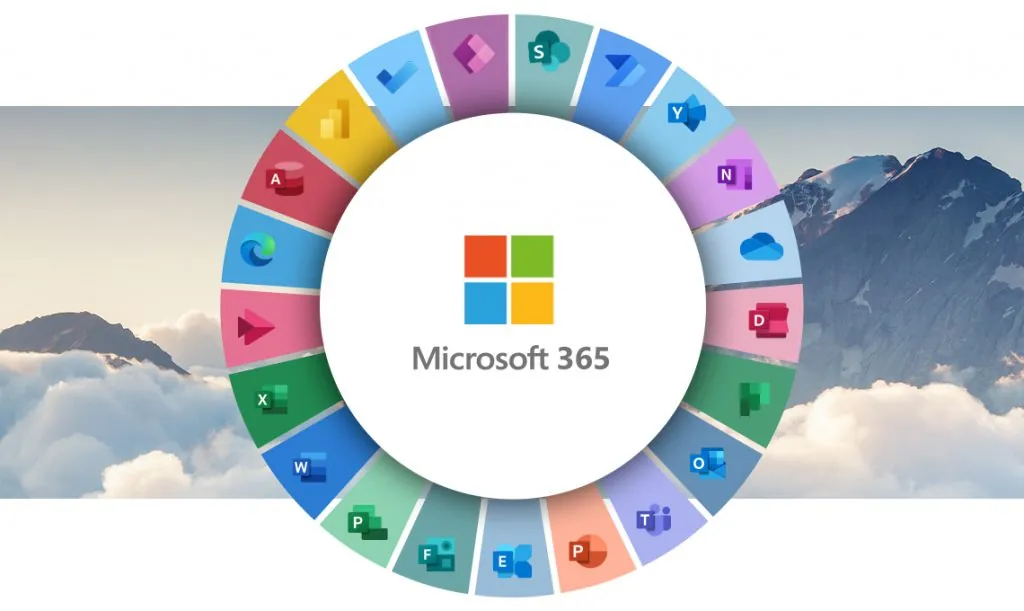
Email is the one system every Perth business depends on, and Microsoft 365 is the most common place it lives. Yet most of the setups we inherit were built in a hurry — the right licences were never reviewed, file sharing was left "however it happened", and security was switched on once and never looked at again.
Getting it right from day one saves money, prevents the "who has access to what?" panic, and means email just works for new starters and leavers. Here's how to set up Microsoft 365 properly — and the mistakes we fix most often.
Start with your domain
Your email should come from your own domain — you@yourbusiness.com.au — not a free Gmail or Outlook address. If you're starting fresh, we set up the domain, connect it to Microsoft 365, and create the mailboxes you need, including shared mailboxes like info@, accounts@ or reception@ that several people can see.
If you're moving from somewhere else — Google Workspace, GoDaddy, cPanel or an old on-premise Exchange server — we migrate email, calendars and contacts with no lost mail, usually over a weekend so no one notices.
Get the licence right
Microsoft 365 has a stack of plans, and it's easy to end up on the wrong one. The two mistakes we see most: paying for Business Premium when Business Basic would do, and the reverse — running on Basic and missing the desktop Office apps or advanced security your team actually needs.
A licensing review takes minutes and often pays for itself immediately. We'll show you exactly what each user needs and where you're over- or under-licensed.
Set up files and sharing properly
OneDrive is for personal files; SharePoint is for shared team files. The classic mess is everyone sharing from their own OneDrive with ad-hoc links, so no one knows who can see what, and when someone leaves, their files leave with them. A proper SharePoint setup with sensible permissions fixes that — and it's how you answer the auditor's "who has access to this folder?" without scrambling.
Switch on the security basics
- MFA on every account, especially admins
- Admin accounts separate from day-to-day accounts
- Email filtering for phishing and spam
- Conditional access — so logins from unusual locations get challenged
- A review of who has admin rights (usually far too many people)
Add backup — because Microsoft doesn't
This is the one most people miss. Microsoft keeps the service running, but backing up your data is your responsibility. If someone deletes a mailbox, a SharePoint site, or a folder full of client files, Microsoft's built-in retention is limited and time-boxed. A separate Microsoft 365 backup means you can restore deleted or encrypted files in minutes, not maybe.
Handle new starters and leavers properly
When someone joins, they get the right licences, the right access, and a working email and Teams setup on day one. When someone leaves, their access is turned off cleanly, their files stay where the business can find them, and their licence is freed up. It's the most overlooked part of running Microsoft 365 — and the one that causes the most headaches when it's wrong.
If you're not sure your Microsoft 365 is set up right, a free 15-minute check is the fastest way to find out. We'll review your domain, licences, security and backup, and send you a one-page list of what to fix first — no obligation.